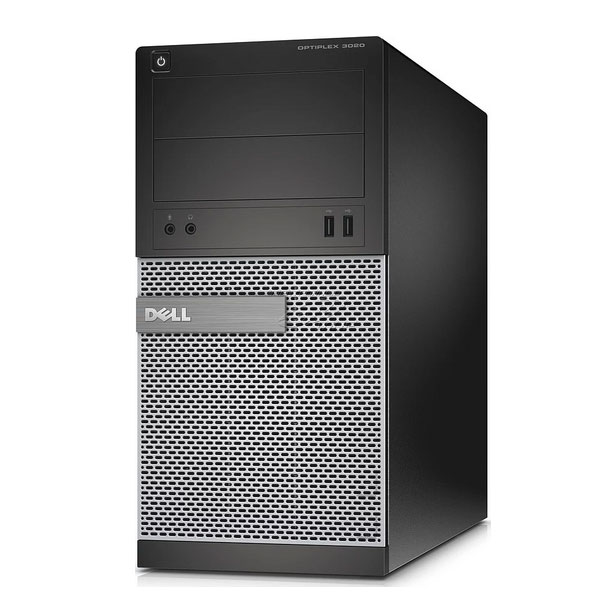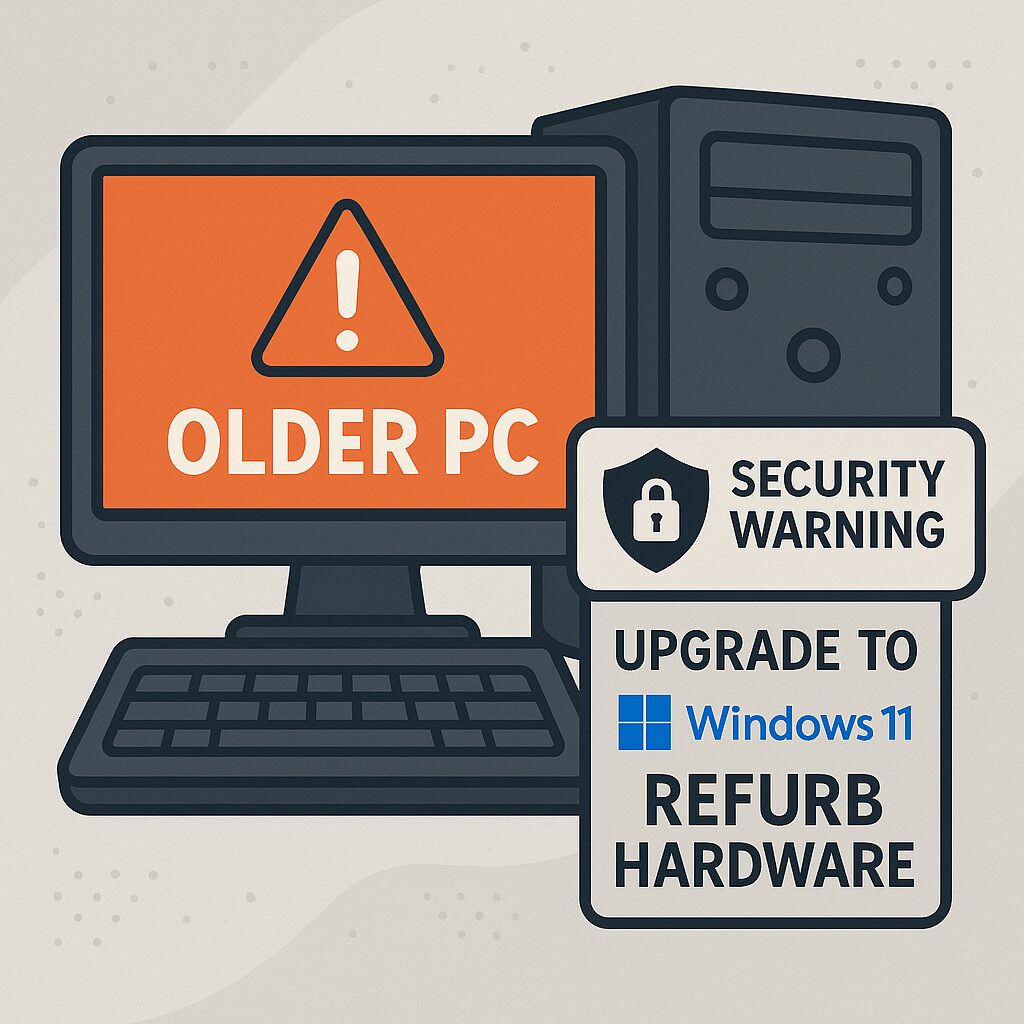
Support for Windows 10 officially ended on 14 October 2025. If you’re still using it, you’re probably wondering how to keep an older PC safe now that Microsoft is no longer providing free security updates, bug fixes or technical support for normal Home and Pro users. The operating system will continue to run, but the security risk grows over time as new vulnerabilities appear and are no longer patched.
Ideally, you should move to Windows 11 on modern hardware. However, not everyone can upgrade immediately. This guide explains what you can realistically do to keep an older PC safe in the short term, and when it makes more sense to retire it and move to a Windows 11-ready replacement.
Why keeping an older PC safe is harder after end of support
When an operating system is out of support:
-
Newly discovered security holes are no longer patched.
-
Security products and apps gradually drop support.
-
You may fall out of compliance with basic security guidance for businesses and organisations.
The UK’s National Cyber Security Centre (NCSC) is very clear that obsolete systems should be phased out and, if they must remain in use, heavily locked down. You can read their advice on obsolete platforms here:
https://www.ncsc.gov.uk/guidance/obsolete-platforms
The goal isn’t to pretend an unsupported machine is completely safe forever. The realistic goal is to keep an older PC safe enough while you plan its replacement.
Can you keep an older PC safe with Extended Security Updates?
Microsoft offers Extended Security Updates (ESU) for Windows 10 to give users more time to move:
-
ESU continues critical and important security updates for Windows 10 version 22H2 beyond October 2025.
-
For home users, ESU can usually be enabled until October 2026 by enrolling the device with a Microsoft account and the ESU programme.
ESU is better than no updates at all, but it is only a temporary safety net. Once ESU ends, that device will again be fully unsupported. If you rely on the machine for everyday work, banking or email, ESU should be treated as a countdown rather than a permanent way to keep an older PC safe.
How to keep an older PC safe in day-to-day use
If you have to stay on an older PC for a while, there are several steps you can take to reduce risk.
1. Limit what the PC is used for
The less you do on an older, unsupported system, the easier it is to keep that older PC safe.
-
Avoid using it for online banking, shopping or handling sensitive personal or business data.
-
Don’t use it as your main machine for work with confidential files.
-
Where possible, dedicate it to low-risk tasks like offline office work, media playback or older games.
Keeping high-risk activities on a newer, supported device and low-risk tasks on the old PC is a simple but effective split.
2. Reduce its exposure to the internet
Reducing internet exposure is one of the most important ways to keep an older PC safe.
-
If you don’t need internet on it, disconnect Wi-Fi and unplug Ethernet.
-
If internet is needed, avoid using the machine as your primary web-browsing device.
-
Do not expose it directly to the internet with port forwarding, remote desktop from outside, or public remote-access tools.
Treat the older PC more like a local appliance than a fully connected, always-online device.
3. Harden accounts and simplify the system
Even on an old OS, you can make compromise less likely and less damaging:
-
Use a standard user account for daily work, not an administrator account.
-
Set strong, unique passwords or passphrases for all local accounts.
-
Remove user accounts that are no longer required.
-
Uninstall software you no longer use, especially toolbars and dated plugins.
A simpler system with fewer admin rights is easier to manage and easier to keep an older PC safe.
4. Keep browser and security tools up to date
Windows itself may be out of support, but some software will continue to receive updates for a while:
-
Use a modern, supported browser (Edge or Chrome, while they still support Windows 10) and allow automatic updates.
-
Keep your antivirus and any security tools updated as long as they support the platform.
-
Apply updates for key third-party apps, such as PDF readers and office suites.
Once your browser and security tools stop updating on that machine, that’s a strong sign that you can no longer realistically keep that older PC safe online.
5. Back up as if it will fail
No matter how careful you are, older hardware and unsupported software carry more risk.
-
Make regular backups of important files to an external drive or reputable cloud service.
-
Use a backup tool that supports multiple versions, so you can roll back before any ransomware or corruption event.
-
Occasionally test restoring a couple of files so you know the backups really work.
A solid backup strategy won’t prevent problems, but it will make recovery far easier when something does go wrong.
6. Keep an older PC safe by isolating it from newer devices
If you have a home or small office network:
-
Don’t use the older PC as a central file server.
-
Avoid letting it be the only route to printers, shared folders or other equipment.
-
If your router allows it, put it on a guest or isolated network.
This helps prevent a compromise on the old machine from spreading to newer, more important devices.
Older than Windows 10? Be even more cautious
If you are still running Windows 7, 8 or 8.1, those platforms have been out of support for longer and are significantly higher risk than Windows 10 with ESU. For these systems, it is very difficult to keep an older PC safe in any meaningful way if it is still connected to the internet.
The safest approach is:
-
Treat them as offline-only machines.
-
Avoid using them for any sensitive or business-critical activity.
-
Plan to retire them as soon as you reasonably can.
When to stop trying to keep an older PC safe and move on
Short-term mitigations can buy time, but they don’t change the fundamentals. It’s time to upgrade when:
-
The PC is used daily for email, banking or work.
-
Browser and antivirus updates have stopped.
-
You’ve reached the end of ESU and still can’t upgrade the operating system.
-
Performance is poor even after cleaning up software.
At that point, the effort to keep an older PC safe is better spent on moving to a modern, supported machine.
A realistic upgrade path: refurbished Windows 11 laptops
You don’t have to jump straight to expensive brand-new kit. A well-chosen refurbished business laptop gives you:
-
A fully supported Windows 11 installation
-
Modern security features like TPM 2.0 and Secure Boot
-
Faster performance with SSD storage and newer processors
-
Lower cost than new hardware, and less e-waste
If you’re ready to retire an old system, have a look at our Windows 11-ready refurbished laptops:
https://accomputerwarehouse.com/product-category/cheap-refurbished-laptops-uk/
In the short term, you can keep an older PC safe by limiting what it does, reducing its exposure to the internet, hardening accounts, keeping remaining software up to date, backing up regularly and isolating it from newer devices. For Windows 10, Extended Security Updates buy a little more time, but they don’t change the end-of-life reality.
Longer term, the only reliable answer is to move to a supported platform. When you reach that point, a refurbished Windows 11 laptop is often the most cost-effective and secure way to move on.
Related Blogs
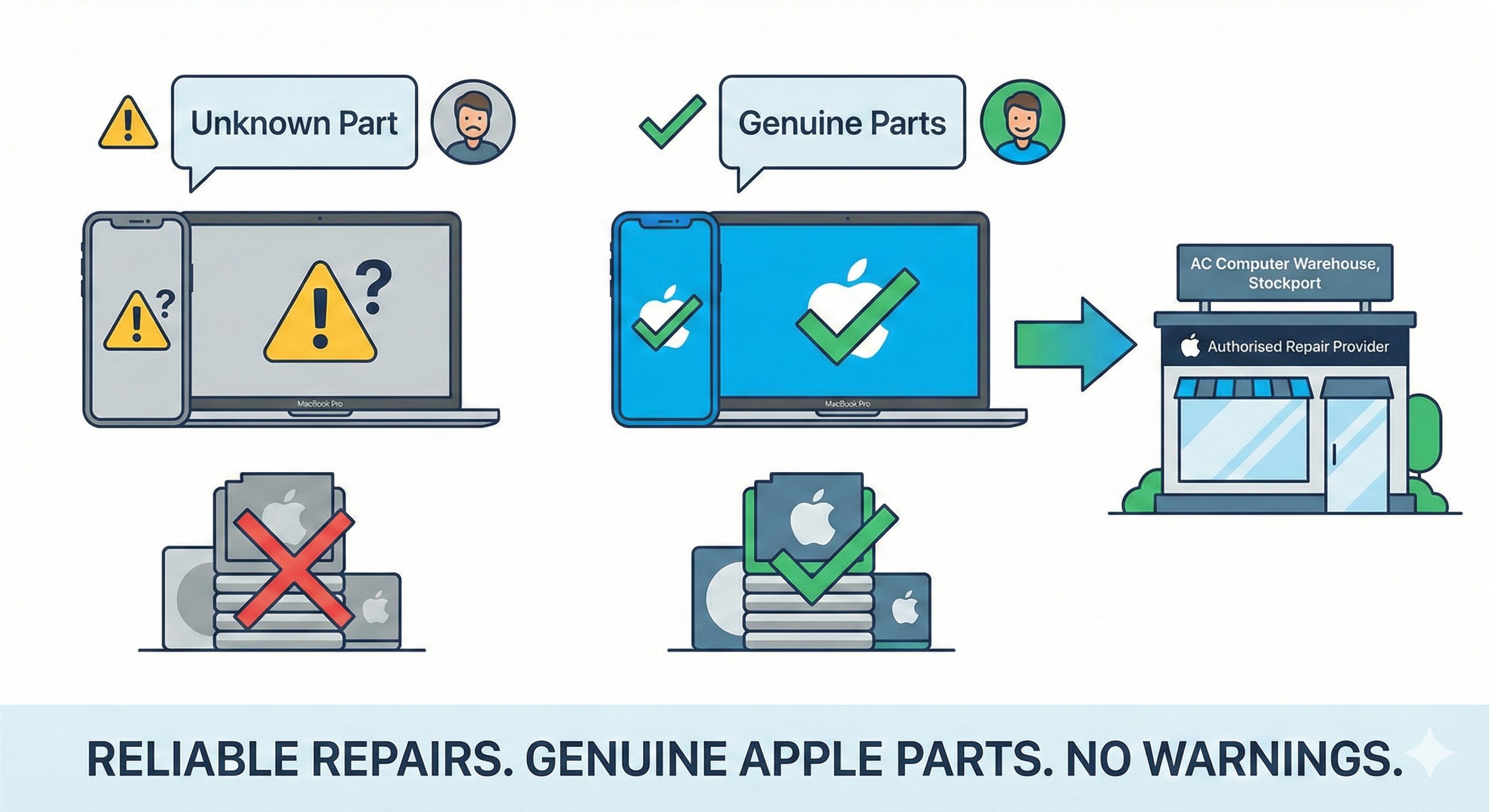
Now offering genuine MacBook and iPhone parts for newer models
If you own a recent MacBook or iPhone, you have probably seen the messages in iOS and macOS warning about…
Read this blog
Laptop Board Repair in Stockport: Why You Shouldn’t Buy a New Laptop Just Yet
There is a common scenario we see all the time. A customer walks in with a high-end gaming laptop or…
Read this blog
Expert Laptop Repair Stockport: Fast, Local & Reliable
There is never a good time for your computer to break. Whether it’s a smashed screen right before a university…
Read this blog