
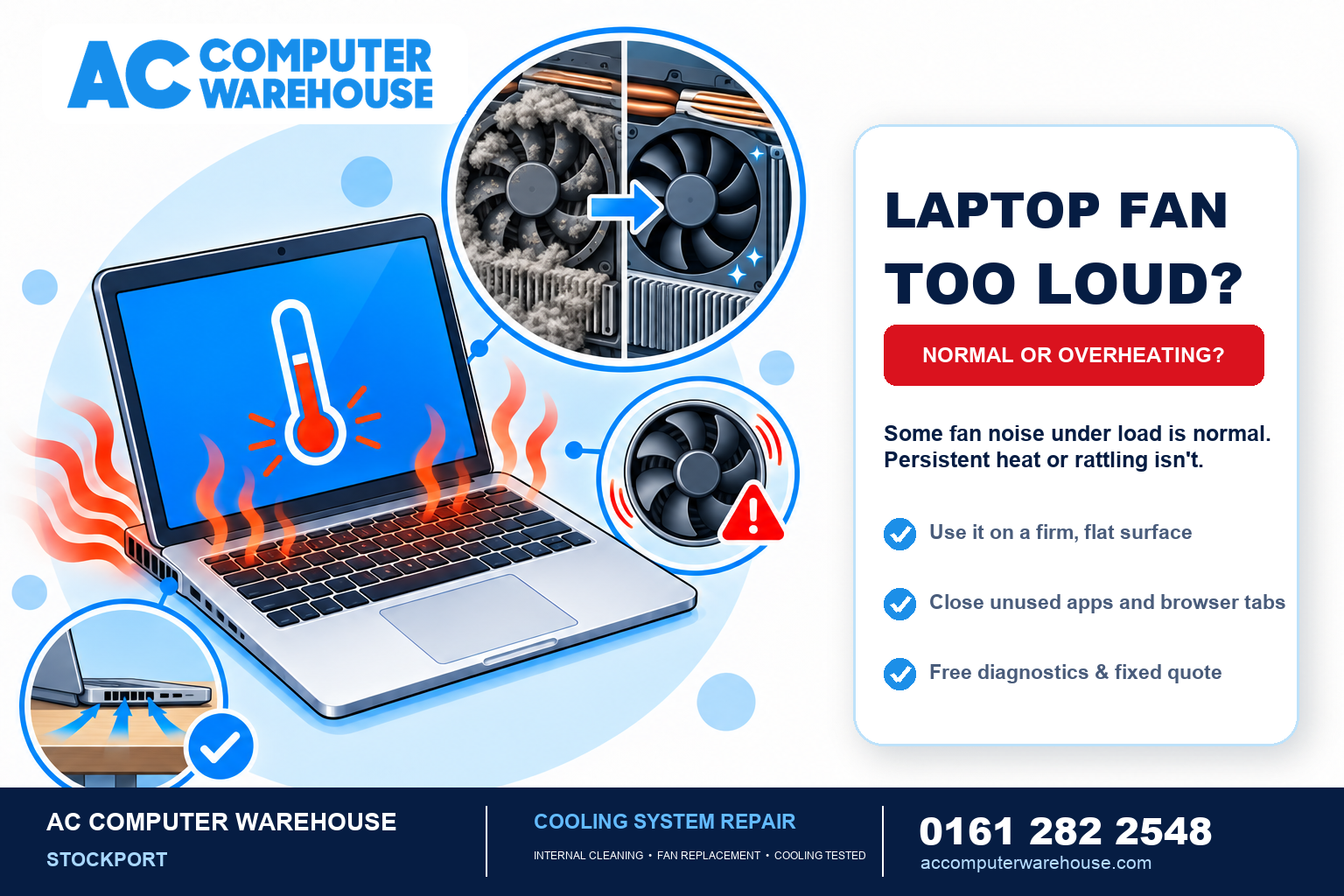
Is your laptop fan loud whenever you switch it on? Perhaps the underside feels hotter than usual, or everything slows down after you have been working for a while. These symptoms can have several causes, and they do not automatically mean you need a new laptop.
A fan getting louder during demanding work can be normal. A sudden change in noise, persistent heat during light use, or repeated shutdowns deserves a closer look. Here is how to tell the difference and what you can safely check first.
Why is my laptop fan loud?
Your laptop produces heat as it works. On models with active cooling, the fan moves air through the cooling system to help carry that heat away. When the workload increases, the fan may speed up and become more noticeable.
Gaming, video editing and running several demanding applications can all increase cooling demands. Background activity can matter too: your laptop may be installing updates even when you are only looking at the desktop.
The useful question is whether the noise settles once that activity finishes. A fan that briefly speeds up is different from one that stays unusually loud throughout ordinary browsing or document work.
Common reasons a laptop runs hot
Blocked airflow
Using a laptop on a duvet, cushion or sofa can cover its ventilation openings. Start by moving it onto a firm, flat surface and making sure nothing is pressed against the vents.
Dust inside the cooling system
Dust and fluff can collect around the fan and cooling fins, restricting airflow. The laptop may still run, but it can struggle to get rid of heat efficiently. An external glance does not always reveal a blockage deeper inside.
A faulty fan or another cooling problem
Grinding, scraping or rattling sounds need a different approach from ordinary airflow noise. A fan may be worn or obstructed, while other cooling faults can involve the heatsink or thermal material. Noise alone is not enough to decide which part needs attention.
Software keeping the laptop busy
Sometimes the cooling system is responding correctly to a heavy workload. Closing applications you no longer need may reduce that workload and allow the fan to settle. Persistent activity during light use is worth investigating before assuming the fan needs replacing.
What you can safely check at home
- Give the vents space. Use a desk or table rather than soft furnishings, and keep the laptop away from direct sunlight or a radiator.
- Close unnecessary applications. Save your work first, then close programmes and browser tabs you are not using.
- Notice when the noise happens. Does it start during a particular game, while charging, or immediately after switching on? Does it settle afterwards?
- Check the manufacturer’s cleaning instructions. Advice varies by model. Switch off and unplug the laptop before cleaning, and do not poke objects or spray cleaning liquid into its vents.
- Avoid taking it apart unless you know the procedure. Accessing the fan can involve delicate cables and an internal battery. If you are unsure, leave internal cleaning to a repair technician.
You do not need to diagnose the exact component before asking for help. A clear description of when the problem happens is a useful starting point.
When should you get it checked?
Arrange an assessment if the fan has developed an unusual mechanical noise, the laptop regularly becomes excessively hot during light use, or you see a fan or temperature warning.
Repeated shutdowns also need investigation. Heat can cause a laptop to shut down, but power, battery and other faults can produce similar symptoms. Avoid repeatedly restarting it to see how long it lasts.
Overheating can also reduce performance because the processor may slow itself down to control temperature. However, a slow laptop is not proof of a cooling fault. Our guide to why laptops run slowly explains other possible causes.
Does a noisy laptop need replacing?
Not necessarily. The right next step is to identify the cause, then compare the repair cost with the laptop’s condition and whether it still meets your needs.
At AC Computer Warehouse, we assess overheating and noisy-fan problems as part of our laptop repair service in Stockport. Depending on the diagnosis, the work may involve clearing an internal blockage, replacing a faulty fan or addressing another cooling issue. We test cooling and performance after the work.
Diagnostics are free, and we explain the fault and provide a fixed quote before repairs go ahead. If repairing the laptop would not be worthwhile, we will tell you.
Frequently asked questions
Is it normal for a laptop fan to get loud during gaming?
Yes, increased fan noise can be normal when a game puts the laptop under load. Pay attention to changes from its usual behaviour, especially new rattling sounds, temperature warnings or shutdowns.
Will a cooling pad fix an overheating laptop?
A suitable cooling pad may help airflow, but it will not repair a faulty fan or remove a blockage inside the cooling system. If the problem persists, get the cause checked.
Does every overheating laptop need new thermal paste?
No. Thermal material is one possible part of a cooling problem, but blocked airflow, fan faults and workload can also matter. The repair should follow the diagnosis rather than assuming that one treatment will solve every case.
How much does a laptop fan repair cost?
The cost depends on the model, the fault and whether replacement parts are needed. We offer free diagnostics and a clear quote before starting repair work.
Need help with a hot or noisy laptop in Stockport?
Call 0161 282 2548 or visit AC Computer Warehouse at Unit 13 Kingston Mill, Chestergate, Stockport, SK3 0AL. There is free parking on site.
Tell us the laptop’s make and model, when the noise started and whether it is slowing down or switching itself off. We will help you work out the next step.